How to find and copy your UPI ID in Google Pay, PhonePe and Paytm
4 November 2026 · 4 min read
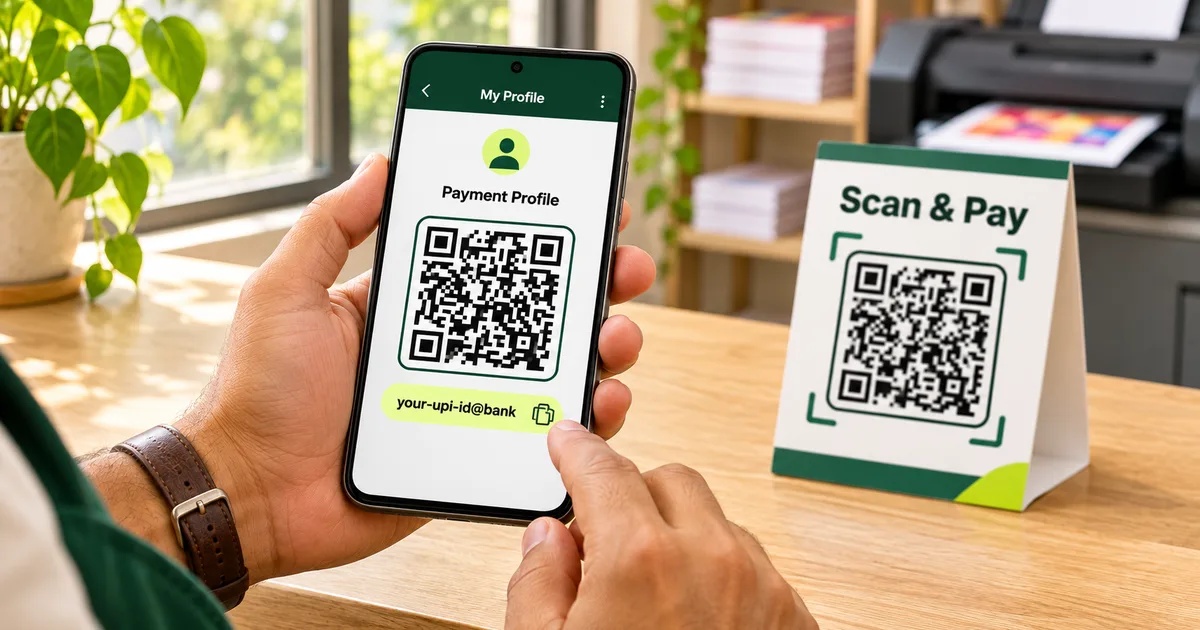
Your UPI ID is the address people pay to. It looks like name@bank, for example greenleafcafe@okaxis or 98xxxxxx10@ybl. You need it to make a payment QR stand, and it is easy to copy once you know where it is.
App menus change from time to time, so the exact words may differ a little on your phone. The steps below work on current versions.
Google Pay
- Open Google Pay, or Google Pay for Business if your shop uses it.
- Tap your profile picture at the top right.
- Your UPI ID is shown under your QR code. If you have more than one bank, each has its own ID.
- Tap the UPI ID to copy it.
PhonePe
- Open PhonePe, or the PhonePe Business app for your shop.
- Tap your profile picture at the top left. In the Business app, open My QR.
- Find UPI ID. It often ends in @ybl, @ibl or @axl.
- Tap the copy icon next to it.
Paytm
- Open Paytm, or Paytm for Business for your shop.
- Tap the profile icon at the top left.
- Your UPI ID is shown under your name, often ending in @ptyes, @ptaxis or @pthdfc.
- Tap the copy icon.
BHIM and bank apps
- Open the app and go to your profile or the UPI section.
- Look for UPI ID, VPA or Virtual Payment Address.
- Long-press it and choose Copy if there is no copy icon.
Already have a QR sticker? Read the ID from it
If the shop already has a QR from the bank or a payment app, you can take the UPI ID from it without opening any menus.
- Point your phone camera or Google Lens at the QR.
- When it shows a link starting with upi://pay, tap Copy instead of opening it.
- Paste the whole link into our QR maker. We read the UPI ID and the name from it.
- You can also share the QR image from your app. The UPI ID is usually printed under the code.
Paste it into the QR maker
- Open the QR maker and choose UPI payments.
- Tap Paste, or long-press the UPI ID box and choose Paste.
- A green tick means the ID looks right. The preview QR is your real payment QR.
- Scan the preview with your own phone. Your name should appear on the payment screen. Close it without paying.
Keep it safe
Your UPI ID is meant to be shared, so printing it is safe. Your UPI PIN is not. Never share your PIN, OTP or bank password with anyone, including us. We only need the UPI ID.
Make your UPI payment stand
Paste your UPI ID, pick one of 20+ designs (or make your own with ChatGPT), and scan the preview with your own phone before you order.